
Assess
FREESee issues before printing
Simulates your print to reveal defects early.
Assess
FREE
See issues before printing
Simulates your print to reveal defects early.
- Engineering-grade 3D print diagnosis made simple with 1 click
- Totally free to run, in seconds, in your slicer
- Compatible with >20 materials and printers in the Bambu Lab ecosystem

What you get
Try now - Run a free Printability Report before you press Print (seconds, not hours).
- Spot overheating vs overcooling risk so you know what to change—without guesswork.
- Compare “what‑ifs” (fan, speed, temps) with clearer go/no‑go confidence.
Helps you achieve
Proof - Fewer failed prints (especially long jobs)
- Less warping & distortion
- Stronger layer bonding (avoid brittle/cold layers)
- Cleaner bridges & overhangs
How it works (fast)
- Step 1Slice as usual in Bambu Studio
- Step 2Then run Assess (make it a habit) → get a Printability Report + risk map
- Step 3Apply one targeted change, then re‑run Assess to confirm the fix
Tip: Treat it like a checklist—Slice → Assess → fix the top risk → re-run Assess to confirm.
New
Clear reports
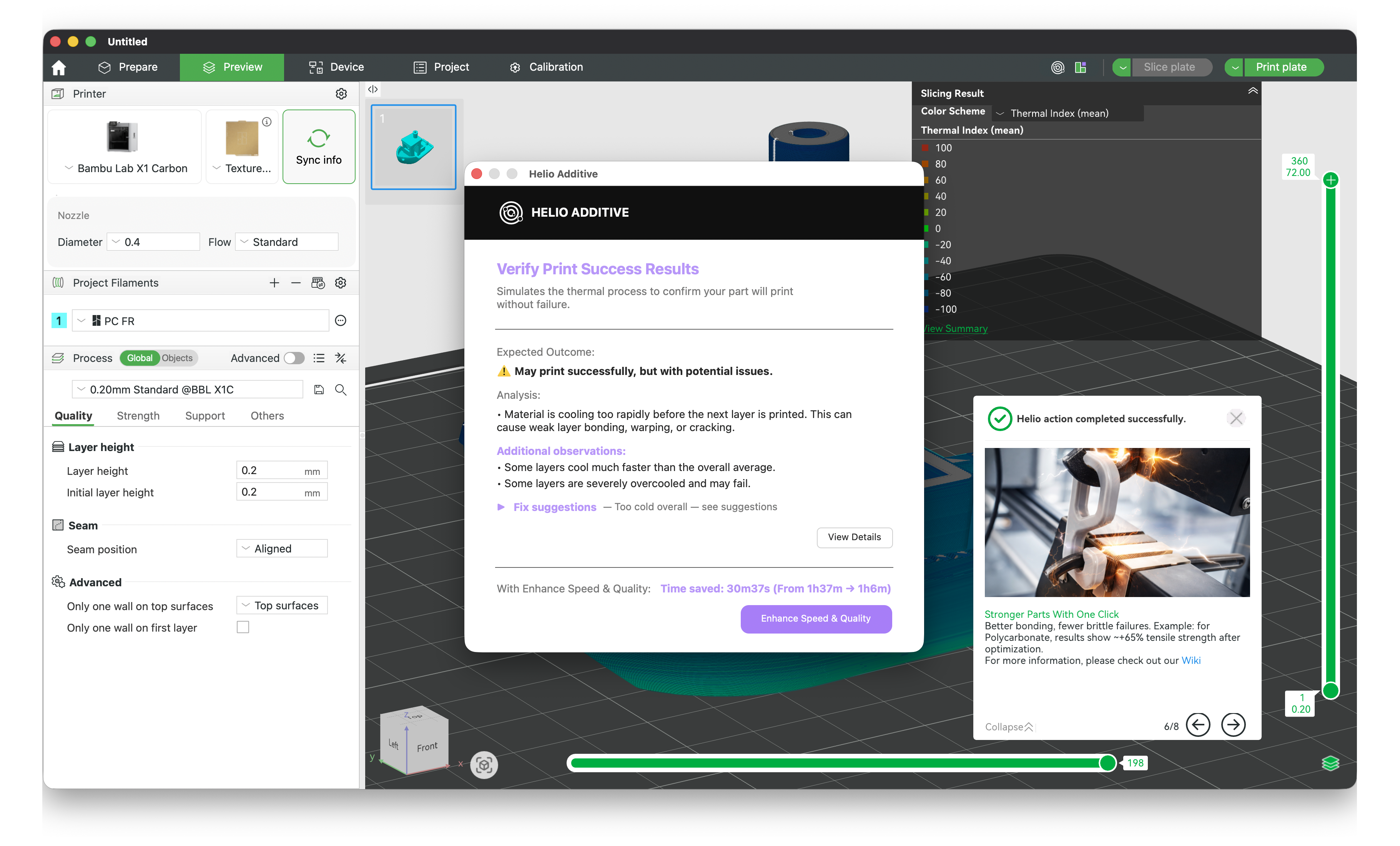
Clear Assess Reports With Pass / Risk Verdicts
Every Assess now delivers a simple, actionable report that tells you if a print will succeed — and how to improve it if not.
Know if it will work — before you hit print.
Workflow
Diagnose faster with a guided checklist
When Assess flags thermal risk, you usually need just a few targeted tweaks. Use this wizard to decide what to try next based on whether you’re overheating (red) or overcooling (blue).
How to use it
- Run Assess and note the TQI color (red vs blue).
- Answer the quick questions (fan limits, speed limits, where the issue is).
- Apply one change at a time, then re-run Assess to confirm improvement.
Assess decision wizard
Red = overheatingBlue = overcooling
Start with your Assess result
Assess summarizes thermal risk with TQI. If TQI is red, you’re trending too hot. If it’s blue, you’re trending too cold. Pick what you’re seeing to get a recommended next move.
This is a guided checklist based on common thermal failure patterns. Always stay within material and printer safety limits.