
Thermal Quality Index (TQI)
TQI is Helio’s way to summarize whether a print’s thermal conditions are staying in a “healthy” range for reliable bonding, dimensional stability, and repeatable surface quality.
This page is written to be useful (not academic). For deeper technical references, see the Helio Additive Wiki .
What TQI tells you
In practice, TQI helps you answer two questions that drive print outcomes:
- Are layers trending too hot or too cold (a consistent bias)?
- Are thermal conditions stable from layer to layer (repeatability), or oscillating?
When TQI improves, you generally see fewer failures (warp/deformation risk and bonding issues), more consistent quality, and a wider “safe” window for speed.
How to interpret “mean” vs “variability”
You’ll often see TQI discussed in terms of:
- Mean (or |mean|): whether the print is consistently off-target in one direction.
- Variability (e.g., standard deviation): whether conditions swing from layer to layer.
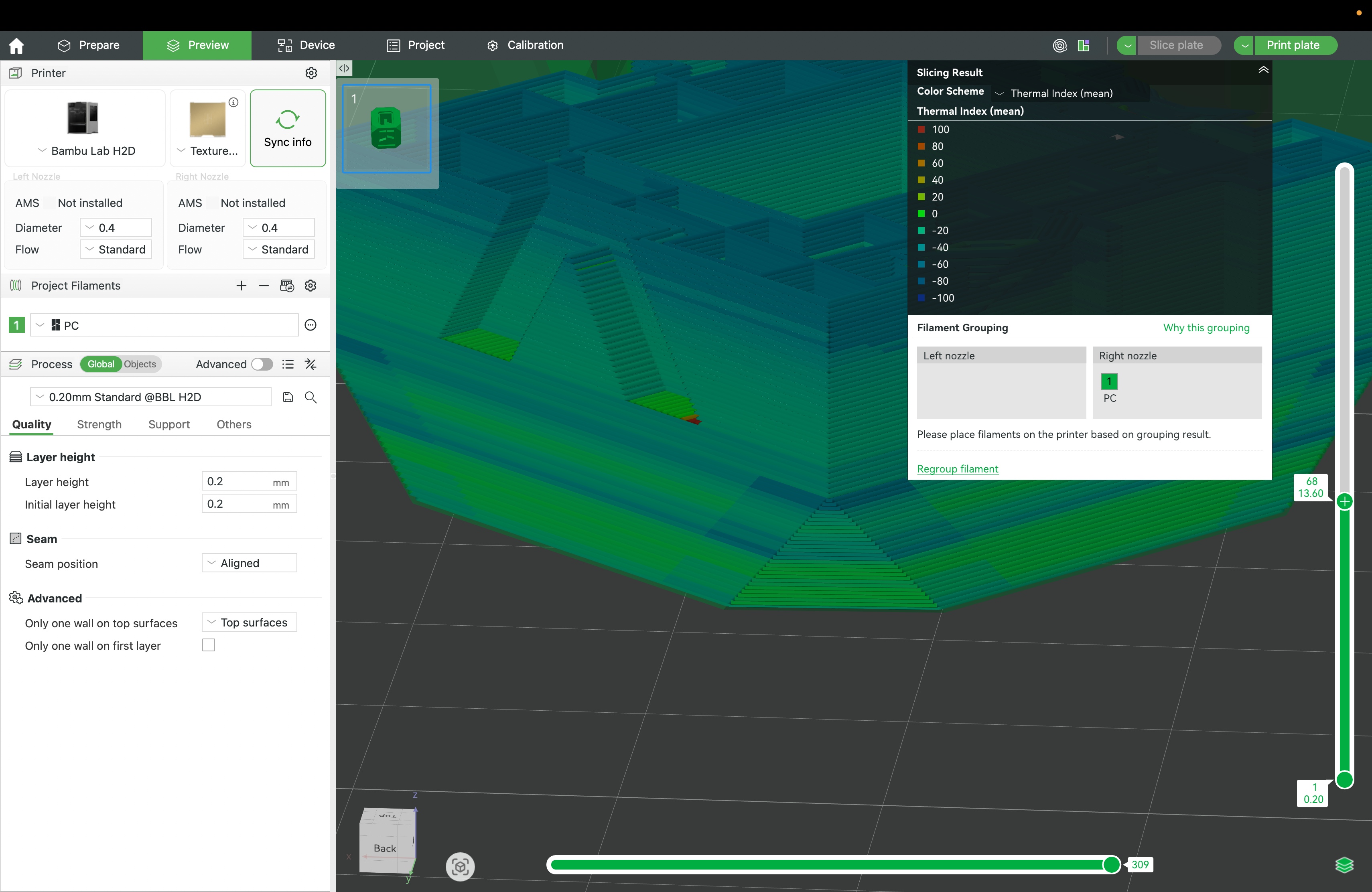
How Helio uses TQI
Assess uses simulation to highlight risk zones and thermal behavior that can lead to failures or inconsistent quality—before you commit time and material.
Enhance tunes layer-time behavior to improve throughput while protecting thermal stability—helping reduce |mean| and variability in the process.
The goal isn’t a “perfect number” in isolation—it’s to keep the print in a thermal regime that produces strong, repeatable parts with fewer surprises.